%22%2F%3E%20%3Cpath%20d%3D%22M24%2C16%20L104%2C16%20L104%2C65%20C104%2C91.95%2088.8%2C105.18%2064%2C114%20C39.2%2C105.18%2024%2C91.95%2024%2C65%20Z%22%20fill%3D%22%23f4f6f9%22%2F%3E%20%3Cpath%20d%3D%22M29%2C21%20L99%2C21%20L99%2C64%20C99%2C87.65%2085.7%2C99.26%2064%2C107%20C42.3%2C99.26%2029%2C87.65%2029%2C64%20Z%22%20fill%3D%22url(%23tpS)%22%2F%3E%20%3Cpath%20d%3D%22M44%2C44%20H84%20V58%20H71%20V96%20H57%20V58%20H44%20Z%22%20fill%3D%22%23f4f6f9%22%2F%3E%20%3C%2Fsvg%3E) Trump PDF
Trump PDFTrump PDF › Split
🔒 Files never leave your deviceSplit PDF — Extract Pages Without Uploading
Pull a few pages out of a long document, or break one PDF into many. Choose exact ranges, split every N pages, or turn every page into its own file — then download the results, individually or as a zip.
Free · no signup · no watermark · no file uploaded
How to split a PDF
- Open the editor and choose the PDF you want to split.
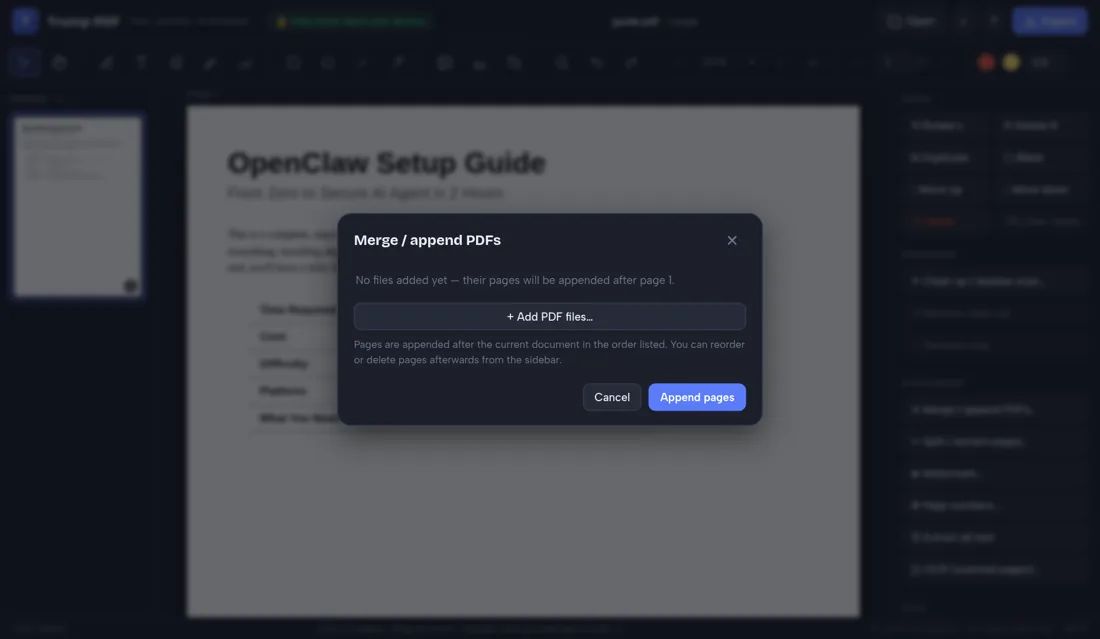
- Open Split / extract pages.
- Pick ranges, every N pages, or single pages.
- Check the preview of the files you will get.
- Click Split and save the results.
Three ways to split
Enter ranges like 1-3, 7, 10-12 to carve out precisely the parts you need. Split every N pages to chop a long report into even chunks. Or split into single pages when each page needs to travel separately. A preview line shows exactly which files you are about to produce before anything is generated.
Extract instead of split
If you only want a couple of pages, a range split is the fastest extraction there is: type the range, export, done. The pages keep their original quality and selectable text because the export copies the source pages rather than re-rendering them.
Delivered as one file or a zip
Split into a single part and you get a single PDF. Split into several and the parts are bundled into one zip download so you are not clicking through a dozen save dialogs.
Why local splitting matters
Splitting usually means separating something confidential — a payslip from a bundle, one client's contract from a batch, a medical letter from a file. Doing it locally means the whole bundle never sits on someone else's server.
Why "no upload" matters when you split a PDF
People usually reach for this tool while pulling one payslip out of a batch, or one client file out of many. Nearly every free PDF website handles that by uploading your file to a server, processing it there and deleting it at some later point you cannot verify — which means the entire bundle you only wanted one page from has been copied onto infrastructure belonging to a company you know nothing about, together with your IP address and the file name.
Trump PDF takes the upload out of the equation. The whole editor is a single page of code that runs in your browser, and every operation — editing text, compressing, merging, OCR, export — happens on your own processor. You do not have to take our word for it: open your browser's developer tools, switch to the Network tab, and use the editor. You will see requests that download the application, and no request that sends your document anywhere.
Frequently asked questions
How do I extract just one page from a PDF?
Open Split, choose the range mode, and enter that single page number — you will get a one-page PDF.
Can I split into uneven parts?
Yes. Enter several ranges separated by commas, such as 1-4, 5, 6-20, and each becomes its own file.
Do split files keep their quality?
Yes. Pages are copied from the source document, so text stays selectable and images stay at original resolution.
Is my PDF uploaded?
No. Splitting runs entirely in your browser.