%22%2F%3E%20%3Cpath%20d%3D%22M24%2C16%20L104%2C16%20L104%2C65%20C104%2C91.95%2088.8%2C105.18%2064%2C114%20C39.2%2C105.18%2024%2C91.95%2024%2C65%20Z%22%20fill%3D%22%23f4f6f9%22%2F%3E%20%3Cpath%20d%3D%22M29%2C21%20L99%2C21%20L99%2C64%20C99%2C87.65%2085.7%2C99.26%2064%2C107%20C42.3%2C99.26%2029%2C87.65%2029%2C64%20Z%22%20fill%3D%22url(%23tpS)%22%2F%3E%20%3Cpath%20d%3D%22M44%2C44%20H84%20V58%20H71%20V96%20H57%20V58%20H44%20Z%22%20fill%3D%22%23f4f6f9%22%2F%3E%20%3C%2Fsvg%3E) Trump PDF
Trump PDFTrump PDF › Merge
🔒 Files never leave your deviceMerge PDF Files — Combine Documents Privately
Join several PDFs into a single document without handing your paperwork to a website. Add as many files as you like, arrange the pages exactly how you want them, and export one clean PDF.
Free · no signup · no watermark · no file uploaded
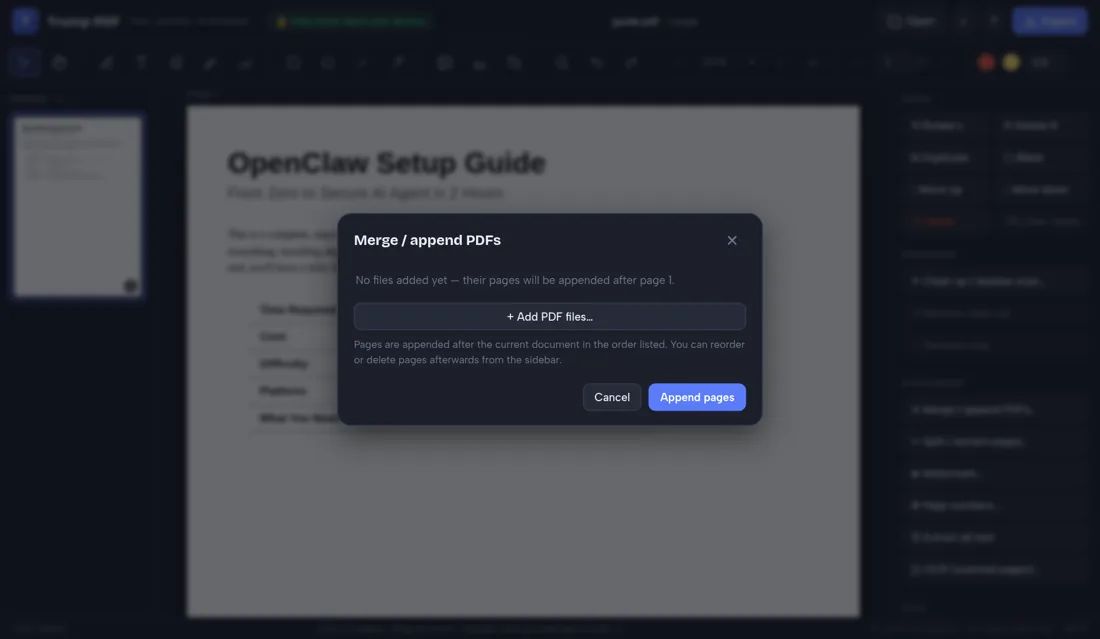
How to merge a PDF
- Open the editor and choose your first PDF.
- Open Merge / append PDFs and add the other files.
- Click Append to combine them into one document.
- Drag pages in the sidebar to reorder them.
- Click Export to save the merged PDF.
Combine as many files as you need
Add PDFs one after another and their pages are appended to your working document. You can also drag files straight onto the page. Because merging happens locally, there is no per-file cap, no queue and no waiting for an upload to finish over a slow connection.
Reorder, rotate and delete before you export
Merging is rarely just gluing files together. The page sidebar lets you drag pages into any order, and single-page controls let you rotate, duplicate or delete anything you do not want. Insert a blank page where you need a separator.
Text stays selectable
The default export copies the original pages rather than flattening them to pictures, so the merged document keeps its selectable, searchable text and stays crisp at any zoom. Your edits and annotations are layered on top.
Ideal for sensitive paperwork
Merging is the operation people most often perform on contracts, invoices, medical records and ID documents — exactly the files you should not be uploading to an unknown server. Here they never leave your device.
Why "no upload" matters when you merge a PDF
People usually reach for this tool while bundling invoices, ID documents or medical records into one file. Nearly every free PDF website handles that by uploading your file to a server, processing it there and deleting it at some later point you cannot verify — which means every document in the bundle has been copied onto infrastructure belonging to a company you know nothing about, together with your IP address and the file name.
Trump PDF takes the upload out of the equation. The whole editor is a single page of code that runs in your browser, and every operation — editing text, compressing, merging, OCR, export — happens on your own processor. You do not have to take our word for it: open your browser's developer tools, switch to the Network tab, and use the editor. You will see requests that download the application, and no request that sends your document anywhere.
Frequently asked questions
How many PDFs can I merge at once?
There is no fixed limit. Add as many as your device can comfortably hold in memory; large batches simply take a little longer to render.
Can I change the page order after merging?
Yes. Drag pages in the sidebar, or use the move, duplicate, rotate and delete controls before exporting.
Will the merged file keep selectable text?
Yes. The standard PDF export preserves the original page content, so text remains selectable and searchable.
Are my files uploaded?
No. All merging happens inside your browser.