%22%2F%3E%20%3Cpath%20d%3D%22M24%2C16%20L104%2C16%20L104%2C65%20C104%2C91.95%2088.8%2C105.18%2064%2C114%20C39.2%2C105.18%2024%2C91.95%2024%2C65%20Z%22%20fill%3D%22%23f4f6f9%22%2F%3E%20%3Cpath%20d%3D%22M29%2C21%20L99%2C21%20L99%2C64%20C99%2C87.65%2085.7%2C99.26%2064%2C107%20C42.3%2C99.26%2029%2C87.65%2029%2C64%20Z%22%20fill%3D%22url(%23tpS)%22%2F%3E%20%3Cpath%20d%3D%22M44%2C44%20H84%20V58%20H71%20V96%20H57%20V58%20H44%20Z%22%20fill%3D%22%23f4f6f9%22%2F%3E%20%3C%2Fsvg%3E) Trump PDF
Trump PDFTrump PDF › Scan to text
🔒 Files never leave your deviceScanned PDF to Text — OCR That Runs on Your Device
A scan is a picture of words, so you cannot select or search it. OCR reads those pictures and gives you real text — and unlike almost every other free OCR service, this one runs inside your browser instead of on someone else's server.
Free · no signup · no watermark · no file uploaded
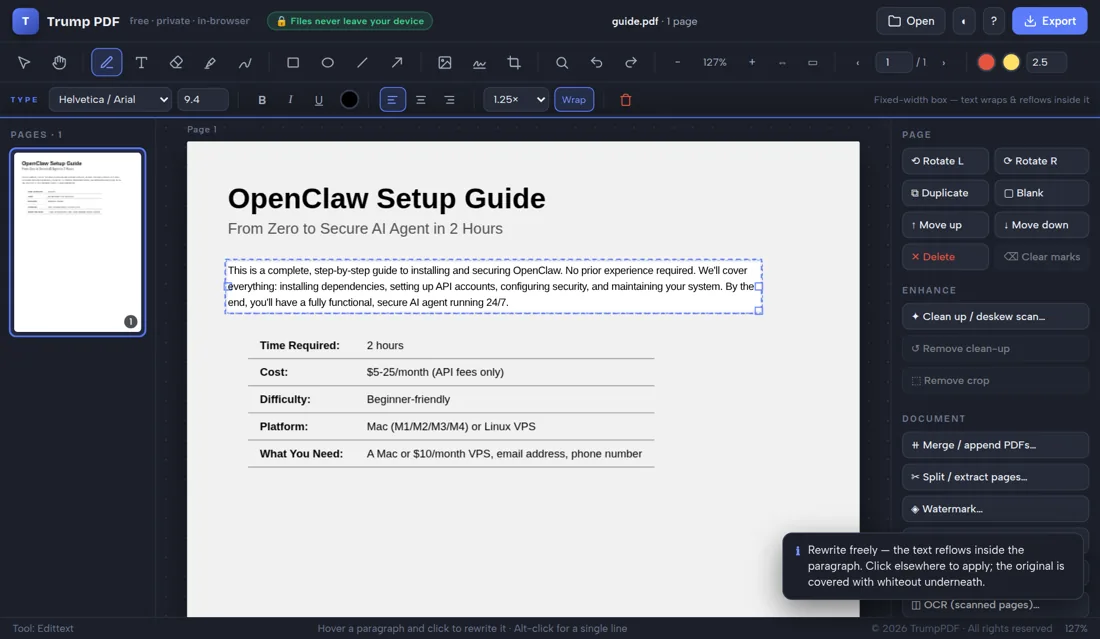
How to scan to text a PDF
- Open the editor and choose your scanned PDF.
- Optionally run Clean up / deskew first for better accuracy.
- Click OCR and choose this page or all pages.
- Wait while the text is recognised on your device.
- Copy the text or download it as a .txt file.
Consensus recognition: several readings, merged word by word
A scan usually fails in a specific way — some words are lost to low contrast, others to speckle, others to a slight tilt — and no single image treatment fixes all three. Our engine starts with adaptive local thresholding, which survives the uneven lighting of a phone photo far better than a global threshold. It then scores what came back, and only if the page proves difficult does it escalate: contrast boosting, upscaling and sharpening, each read separately. The results are merged word by word, keeping the most confident reading of every word and boosting words that several passes agree on. In our own benchmarks against known text, a plain single pass scored worse than useless on a degraded scan, while this pipeline reached 99.7% character accuracy.
It tells you when it failed
Most OCR tools hand back nonsense with no warning when a scan is too poor to read. Ours reports a confidence figure for every page, counts the words it is unsure about, and refuses to write a text layer at all when the result cannot be trusted — telling you plainly that the page needs rescanning at 300 dpi instead of quietly filling your document with invented words.
An invisible text layer makes the scan searchable
Tick the searchable option and the recognised words are written into the exported PDF as real, invisible text positioned exactly over the scan. The page still looks like the original photograph, but you can select, search and copy its text in any PDF reader, and screen readers can read it aloud. This is the feature most tools reserve for paid tiers.
Clean the scan first for better accuracy
OCR accuracy depends heavily on the image. The clean-up tool can straighten a tilted page automatically, push the contrast so the text separates cleanly from the paper, remove speckles, and optionally convert to pure black and white. Running clean-up before OCR noticeably improves results on photographs and old copies.
Current page or the whole document
Recognise just the page in front of you for a quick lookup, or run the whole file and get the text page by page. The result opens in a panel where you can copy it to the clipboard or download it as a plain text file.
What OCR cannot do
Recognition is never perfect: unusual fonts, handwriting, low-resolution faxes and heavy background noise all cost accuracy, and complex tables lose their layout. Treat the output as text to proofread, not as a guaranteed transcription. Because everything runs on your CPU, long documents also take longer than a server would.
Why "no upload" matters when you scan to text a PDF
People usually reach for this tool while reading text out of a scanned passport, invoice or medical letter. Nearly every free PDF website handles that by uploading your file to a server, processing it there and deleting it at some later point you cannot verify — which means a high-resolution image of a sensitive document has been copied onto infrastructure belonging to a company you know nothing about, together with your IP address and the file name.
Trump PDF takes the upload out of the equation. The whole editor is a single page of code that runs in your browser, and every operation — editing text, compressing, merging, OCR, export — happens on your own processor. You do not have to take our word for it: open your browser's developer tools, switch to the Network tab, and use the editor. You will see requests that download the application, and no request that sends your document anywhere.
Frequently asked questions
Is the OCR really done in my browser?
Yes. The recognition engine is loaded into the page and runs locally. Your scan itself is never transmitted.
How accurate is it?
Very good on clean, straight, reasonably high-resolution scans of printed text. Accuracy drops with handwriting, unusual fonts, low resolution or heavy noise.
Why is it slower than other OCR sites?
Because your own processor is doing the work rather than a server farm. That is the trade for your document staying private.
Can I make the scanned PDF searchable?
Yes. Leave the searchable option ticked and the exported PDF carries an invisible text layer over the scan, so the document becomes selectable and searchable in any reader.