%22%2F%3E%20%3Cpath%20d%3D%22M24%2C16%20L104%2C16%20L104%2C65%20C104%2C91.95%2088.8%2C105.18%2064%2C114%20C39.2%2C105.18%2024%2C91.95%2024%2C65%20Z%22%20fill%3D%22%23f4f6f9%22%2F%3E%20%3Cpath%20d%3D%22M29%2C21%20L99%2C21%20L99%2C64%20C99%2C87.65%2085.7%2C99.26%2064%2C107%20C42.3%2C99.26%2029%2C87.65%2029%2C64%20Z%22%20fill%3D%22url(%23tpS)%22%2F%3E%20%3Cpath%20d%3D%22M44%2C44%20H84%20V58%20H71%20V96%20H57%20V58%20H44%20Z%22%20fill%3D%22%23f4f6f9%22%2F%3E%20%3C%2Fsvg%3E) Trump PDF
Trump PDFTrump PDF › Compress
🔒 Files never leave your deviceCompress PDF — Reduce File Size Without Uploading It
Email bounced because the attachment was too big? Compress the PDF here and it is done on your own machine in seconds. Pick how much quality you are willing to trade, see the estimated output size before you commit, and download the smaller file.
Free · no signup · no watermark · no file uploaded
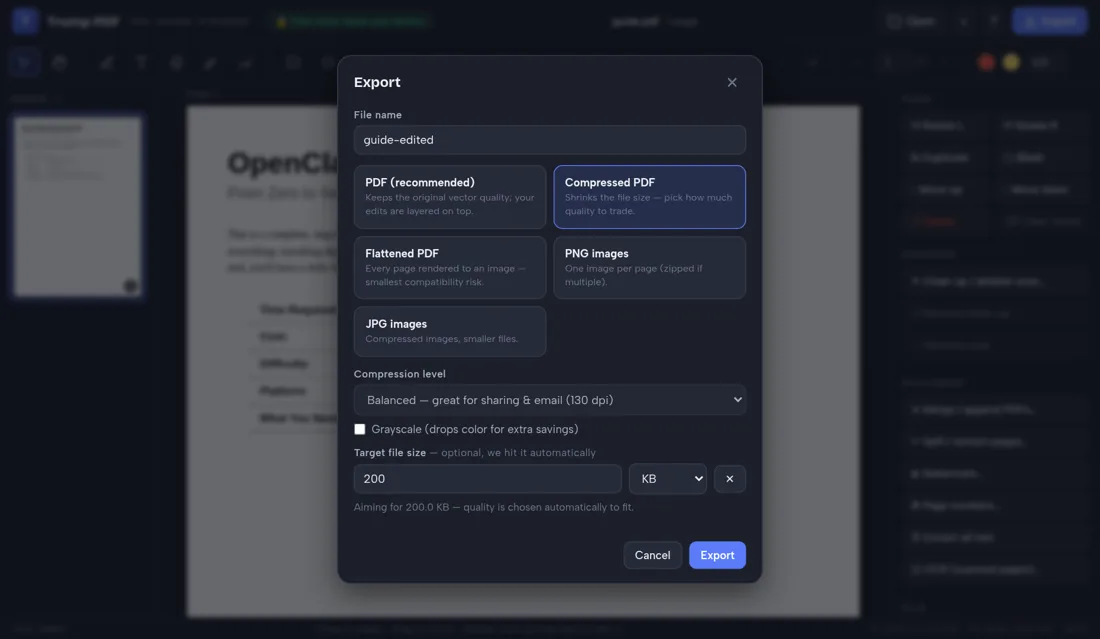
How to compress a PDF
- Open the editor and choose the PDF you want to shrink.
- Click Export, then pick Compressed PDF.
- Choose a compression level and watch the estimated output size.
- Optionally tick grayscale for extra savings.
- Click Export and save the smaller file.
Four compression levels, so you choose the trade-off
High quality keeps text crisp for printing and still trims a substantial amount. Balanced is the sweet spot for email and sharing. Strong makes a noticeably smaller file that is fine for reading on screen. Extreme squeezes hardest for upload limits where size matters more than sharpness. Each preset pairs a render resolution with a matched image quality setting rather than blindly recompressing.
See the size before you download
When you pick a compression level, the tool renders a sample page, measures it, and estimates the finished file size across your whole document — along with how much smaller that is than the original. Change the preset and the estimate updates. It will also tell you honestly when a document is already well compressed and has little left to give.
Grayscale for extra savings
Colour scans of black-and-white paperwork carry a lot of pointless colour data. Tick the grayscale option and the same preset will usually produce a noticeably smaller file with no meaningful loss for text documents.
Why the results are good on scans
Scanned documents are made of large photographs, which is why they balloon to many megabytes. Re-rendering each page at a sensible resolution with a tuned quality setting is exactly the right lever. In testing, a 1.3 MB scanned document came out at 353 KB on Balanced and 133 KB on Extreme — roughly 73% and 90% smaller.
Why "no upload" matters when you compress a PDF
People usually reach for this tool while shrinking a scanned bank statement or a signed agreement to fit an email. Nearly every free PDF website handles that by uploading your file to a server, processing it there and deleting it at some later point you cannot verify — which means the full-resolution scan you are compressing has been copied onto infrastructure belonging to a company you know nothing about, together with your IP address and the file name.
Trump PDF takes the upload out of the equation. The whole editor is a single page of code that runs in your browser, and every operation — editing text, compressing, merging, OCR, export — happens on your own processor. You do not have to take our word for it: open your browser's developer tools, switch to the Network tab, and use the editor. You will see requests that download the application, and no request that sends your document anywhere.
Frequently asked questions
How much smaller will my PDF get?
Scanned or image-heavy documents typically shrink by 60–90%. Text-only PDFs that are already efficient may shrink very little, and the tool tells you when that is the case instead of pretending otherwise.
Does compressing reduce quality?
Some, by definition — that is the trade you are choosing. High quality stays crisp enough for printing; Extreme is for when hitting a size limit matters most. The live estimate helps you pick.
Is there a file size limit?
No imposed limit. Because compression runs on your own computer, the practical ceiling is your device memory rather than a server plan. Very large files simply take longer.
Is my file uploaded to compress it?
No. Compression happens in your browser and the file never leaves your device.