%22%2F%3E%20%3Cpath%20d%3D%22M24%2C16%20L104%2C16%20L104%2C65%20C104%2C91.95%2088.8%2C105.18%2064%2C114%20C39.2%2C105.18%2024%2C91.95%2024%2C65%20Z%22%20fill%3D%22%23f4f6f9%22%2F%3E%20%3Cpath%20d%3D%22M29%2C21%20L99%2C21%20L99%2C64%20C99%2C87.65%2085.7%2C99.26%2064%2C107%20C42.3%2C99.26%2029%2C87.65%2029%2C64%20Z%22%20fill%3D%22url(%23tpS)%22%2F%3E%20%3Cpath%20d%3D%22M44%2C44%20H84%20V58%20H71%20V96%20H57%20V58%20H44%20Z%22%20fill%3D%22%23f4f6f9%22%2F%3E%20%3C%2Fsvg%3E) Trump PDF
Trump PDFTrump PDF › Compress PDF › to 100 KB
🔒 Files never leave your deviceCompress a PDF to 100 KB — Free, and Nothing Is Uploaded
Enter 100 KB as your target and the compressor works out the rest — testing quality settings against your own pages until it finds the best one that fits. Built for government portals and older upload forms that cap attachments at 100 KB.
Free · no signup · no watermark · no file uploaded
How to compress a PDF to 100 KB
- Open the editor and choose your PDF.
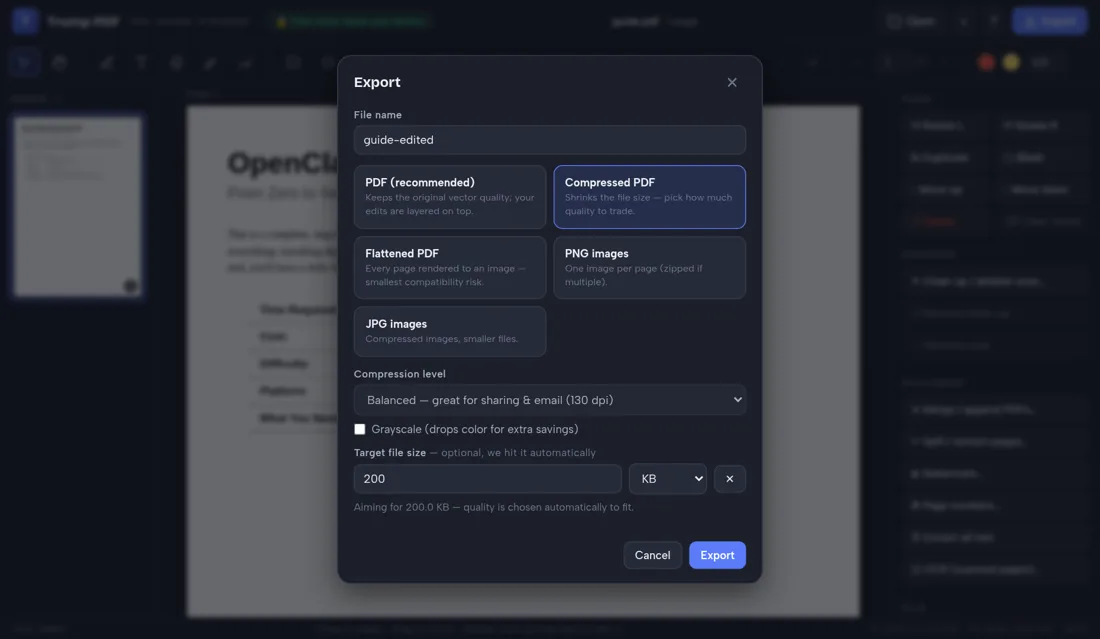
- Click Export and select Compressed PDF.
- Type 100KB into the target file size box.
- Optionally tick grayscale for extra savings.
- Click Export — the file is built to fit 100 KB.
Tip: Tick grayscale as well — on scanned paperwork it is usually the difference between hitting 100 KB and missing it.
Why a target size beats guessing at quality settings
Almost every compression tool asks you to pick "low, medium or high" and then hope. If the result is still too big you go back and try again, and if it comes out far smaller than needed you have thrown away quality for nothing. Neither is what you actually wanted, which was simply a file under 100 KB.
This tool inverts that. You state the limit; the software runs the search. It renders sample pages from your own document at a ladder of resolution and quality combinations, measures the real bytes each produces, projects the total across your page count, and then builds the file at the highest quality that still fits. If the finished file lands above target — which occasionally happens when later pages are denser than the samples — it automatically drops a step and rebuilds rather than handing you something that misses the limit.
What to expect from the result
In testing on a four-page scanned document, targets were hit at between 89% and 95% of the requested size — using the available budget rather than overshooting downward and needlessly softening the text. Text-heavy scans compress dramatically; documents that are already efficient vector text may barely shrink, and the tool says so instead of pretending.
Other target sizes
Frequently asked questions
How do I compress a PDF to 100 KB?
Open your file, choose Compressed PDF in the export dialog, enter 100 KB as the target size and export. The tool tests quality settings against your document and picks the best one that fits.
How does it know which quality to use?
It samples representative pages across a ladder of resolution and quality settings, projects the finished size for your document, then builds at the highest quality that fits your target — and steps down automatically if the real file comes out larger than projected.
What if my PDF cannot reach 100 KB?
Then it tells you. Rather than silently producing something larger, the tool reports the smallest size it could reach and suggests grayscale or removing pages. A hundred-page colour scan cannot become a tiny file without losing something.
Is my document uploaded to compress it?
No. The sampling, the compression and the export all run in your browser. The file never leaves your device.